Quick start
This page takes you from no account to your first event with es-python, in about ten minutes. Each step is short and links to the page that explains it in full.
Before you start
You need a Linux machine where you can open a terminal (a laptop, a server or a container all work) and an email address you can read. The steps use es-python, the product every account starts with; es-chromium is set up the same way from the Machines page, with its own install step.
1. Create your account
Go to the Register page, pick a username, enter your email address and a password, accept the terms, and click Create Account. EyalSec emails you a verification link; clicking it activates your account and signs you in.
You can also use Continue with Google on the sign-in page, if it is shown there. Details are on Create an account.
2. Get a plan
A new account can sign in but cannot add machines or show events until a plan is set up for it, and a banner at the top of the dashboard says so. Email sales@eyalsec.com to book a live demo and have your plan sized.
Your limits apply as soon as the plan is set; you do not need to sign out or reinstall anything. See Plans and limits.
3. Add a machine
A machine is a host where your code runs under EyalSec. On the Machines page, give the machine a Name, pick the Distro, Arch and Python version that match the host, and click Add machine.
The machine appears with the status created. If your account has more than one product, choose es-python under Product first. Every field is explained on Add a machine.
4. Install es-python
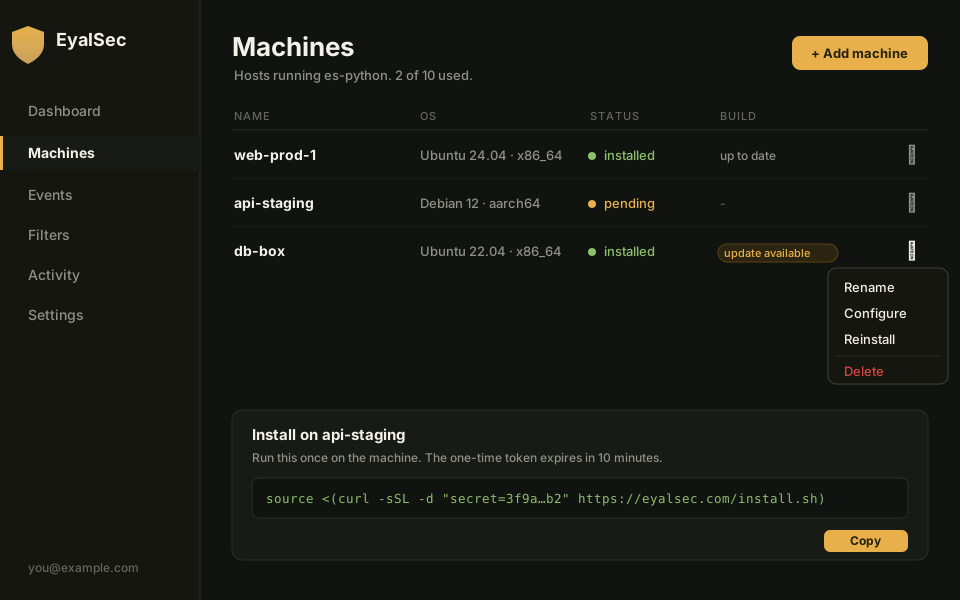
Click Install on the machine's row, confirm you are authorized to monitor that machine, and copy the install command. Paste it into a terminal on the machine itself and run it.
The command contains a one-time token that is valid for 10 minutes; if it expires, click Install again for a fresh one. When the installer finishes, the machine's status turns installed and the es-python command works in that same terminal. See Install es-python.
5. Switch on the sources you want watched
Every source of untrusted data starts off, so a fresh machine reports nothing until you choose what to watch. Click Configure on the machine's row and set, for example, socket and file to On.
You can also set sources once for all your machines on the Filters page. Changes apply to programs you start after the change. What each source does is on Taint sources; the Configure window is on Configure a machine.
6. Run your program
Wherever you would type python, type es-python instead. Your program runs exactly as before, and EyalSec watches it.
es-python your_script.py
More ways to run it, and what to do if the command is not found, are on Running es-python.
7. Watch events arrive
Open the Events page on the dashboard. Each time untrusted data reaches a risky action, a row appears; if the same thing happens again, its count goes up instead of adding a row. Click a row to see where the data came from and which line of code used it.
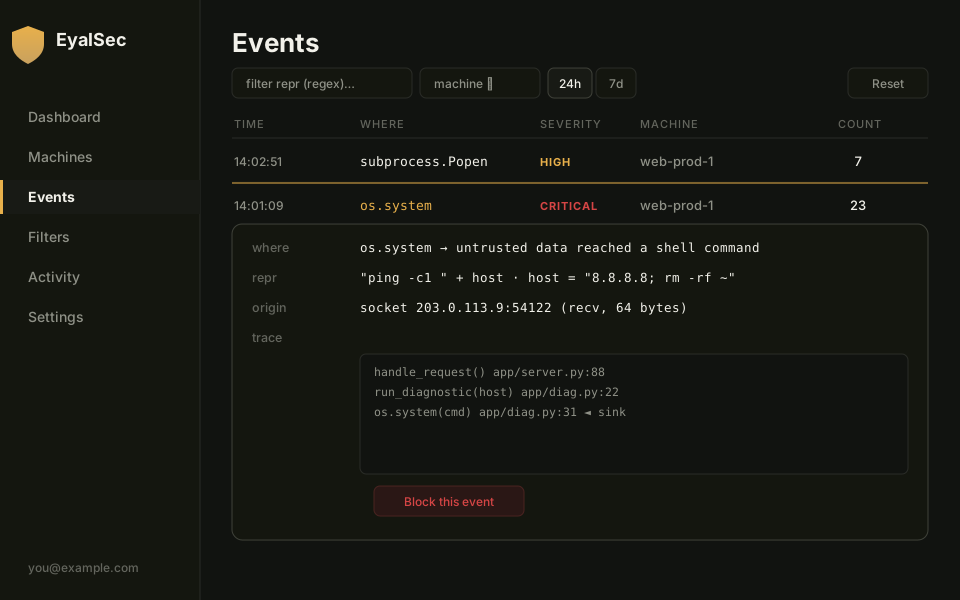
If nothing shows up after a few seconds, check that you ran the program with es-python, that at least one source is on, and that the machine reads installed. See No events and Events.
8. Optional: block instead of only reporting
So far EyalSec only records what it sees. When you are ready to stop risky actions, add a rule with the Raise mode for that machine; the program then gets an error instead of running the action. Raise rules must be enabled on your account first.
See Report and Raise and Rules.
Next steps
With events coming in, these pages help you get the most from them.
- Filtering events and Triage to work through the list.
- Ready-made templates to tune your events for a web application, a data pipeline, CI and automation, a low-noise start, or blocking critical attacks, in one step.
- Rules to hide flows you expect, or to block the dangerous ones.
- Two-factor authentication to protect your account.