Sign in and sign out
This page explains how to sign in with your username and password or with Google, what the two-factor step at sign-in looks like, what happens after too many wrong attempts, and how to sign out.
Sign in with your password
You sign in on the Welcome back page at /login/ with your username and password. Type them and click Secure Sign In; you land on your dashboard.
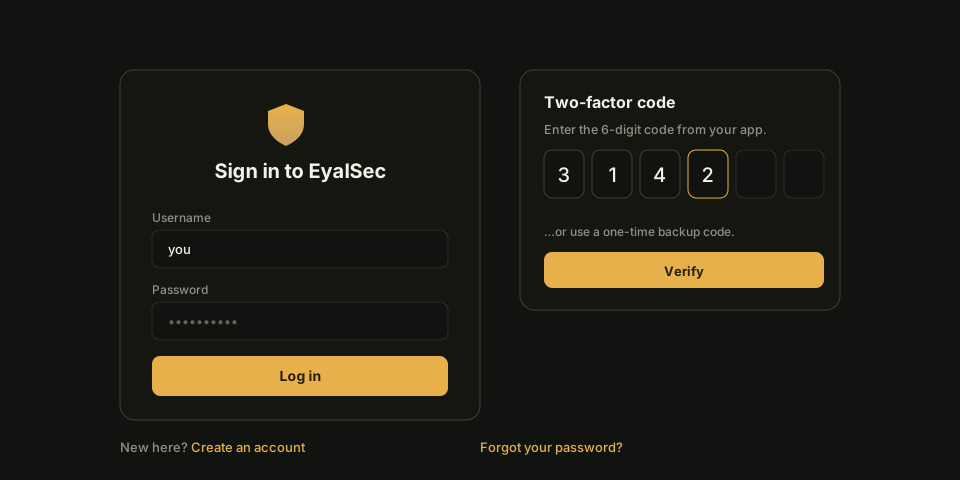
- Sign in with your username, not your email address. (The Forgot password page accepts either.)
- The Secret Key field under Optional is not needed to sign in. Leave it empty.
- If a field was wrong, the page keeps what you typed so you can correct it in place. The message is the same for a wrong username and a wrong password: "Username or Password are incorrect."
- If two-factor authentication is on for your account, you go to a second screen next; see The two-factor step.
If you registered but have not clicked your verification link yet, the dashboard asks you to verify your email first. See Verify your email.
Sign in with Google
When the sign-in page shows Continue with Google, you can sign in with a Google account instead of a password. Click it, pick your Google account, and you are signed in to the EyalSec account that uses the same email address.
- If no EyalSec account uses that address, one is created for you. See Sign up with Google.
- Google never replaces your second factor. If your account has two-factor authentication on, you still get the two-factor step after Google.
- Your Google address must be verified by Google, or sign-in is refused.
If the button is not on the page, Google sign-in is not available; use your username and password. Messages you may see:
| Message | What to do |
|---|---|
| Sign-in request expired or was invalid. | Click Continue with Google again. The request is valid for 10 minutes. |
| Sign-in was cancelled. | You closed or declined the Google screen. Try again. |
| Your Google account's email address is not verified. | Verify the address with Google, or sign in with your password. |
| That address is already in use as a username. | Another account uses your address as its username. Sign in with your password. |
The two-factor step
If your account has two-factor authentication, signing in takes one more step: after your password (or Google) is accepted, you land on the Two-factor authentication page and enter a one-time code. Any one of the codes below works.
- Authenticator code: the current 6-digit code from your authenticator app. Each code works once.
- Backup code: click Use a backup code instead and enter one of your backup codes (like
7K3M-9QXA-2WDF-HN4P). Each works once, and case does not matter. - Email code: if you turned on email sign-in codes, click Email me a code (or Send code to my email, when you have no authenticator app) and enter the 6-digit code from the email.
Click Verify to finish. After five wrong codes you are sent back to the sign-in page to start again. Setting up two-factor authentication is on Two-factor authentication.
Too many attempts
To protect your account, EyalSec slows down repeated failed sign-ins. After five wrong attempts, sign-in is refused with "Too many failed attempts. Please try again later."
- Wrong attempts from one network block sign-in from that network for 15 minutes.
- Wrong attempts against one account lock that account for a short time, starting at a minute and growing with further failures, up to 15 minutes. This applies wherever the attempts come from.
Wait and try again, or reset your password with Forgot password. A successful sign-in clears the count.
Sign out
Click Sign out at the bottom of the dashboard sidebar. Your session ends on the server immediately, not only in this browser, and you return to the sign-in page.
Sign out when you finish on a shared or public computer. You are also signed out automatically after a period without activity; you can change how long in Session timeout. Some changes in Settings sign out your other browsers too; see Settings.